
Upload Backups To Amazon S3
Note: If you are Frappe Cloud user, onsite and offsite backups are automatically created for you: https://frappecloud.com/docs/sites/backups
Prerequisites
To receive emails for failed and successful backups, please create an Email Account first.
Create S3 bucket and set up access
- Create a new s3 bucket.
In the bucket settings, enable "Block all public access" to keep your data private. Feel free to enable encryption, versioning or object lock as per your requirements (please refer to Amazon's documentation).
2. Open Identity and Access Management (IAM).
3. Create a new policy for the Service "S3", allowing the Actions "ListBucket" and "PutObject".
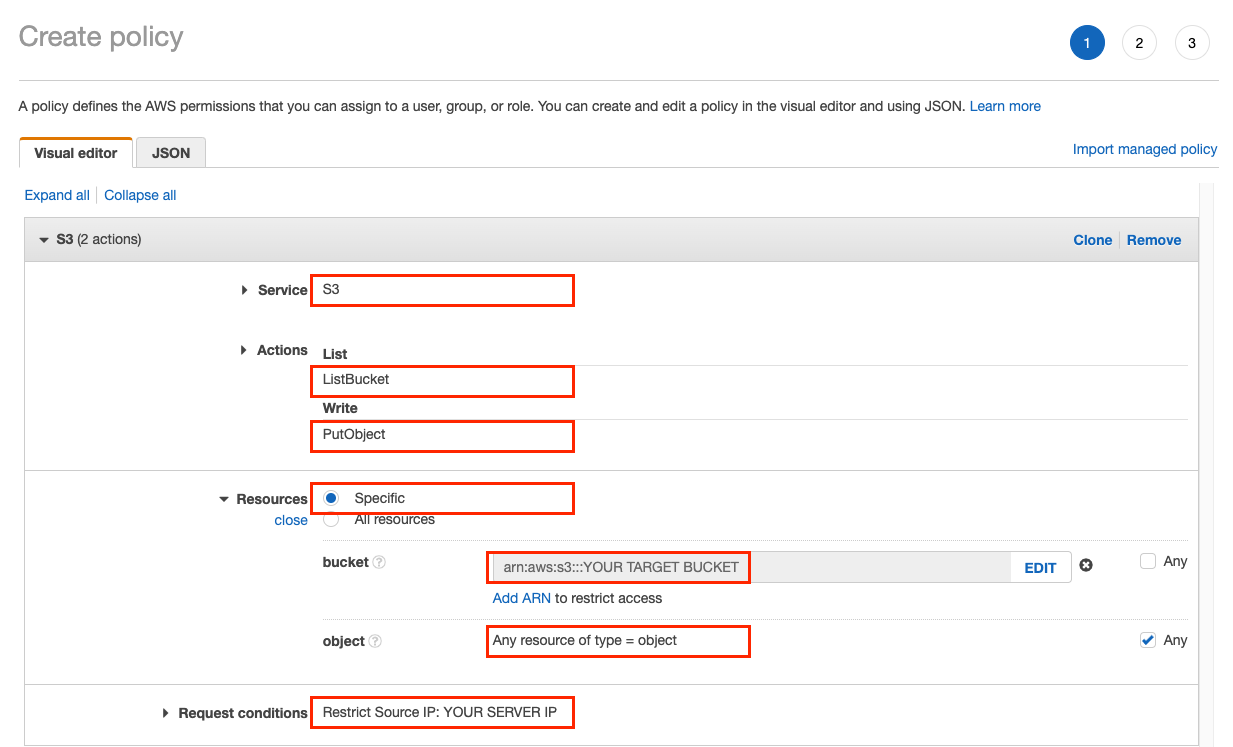
Or, using the JSON editor:
{
    "Version": "2012-10-17",
    "Statement": [
        {
            "Sid": "VisualEditor0",
            "Effect": "Allow",
            "Action": [
                "s3:PutObject",
                "s3:ListBucket"
            ],
            "Resource": [
                "arn:aws:s3:::*/*",
                "arn:aws:s3:::YOUR TARGET BUCKET"
            ],
            "Condition": {
                "IpAddress": {
                    "aws:SourceIp": "YOUR SERVER IP"
                }
            }
        }
    ]
}
4. Create a new user for programmatic access.
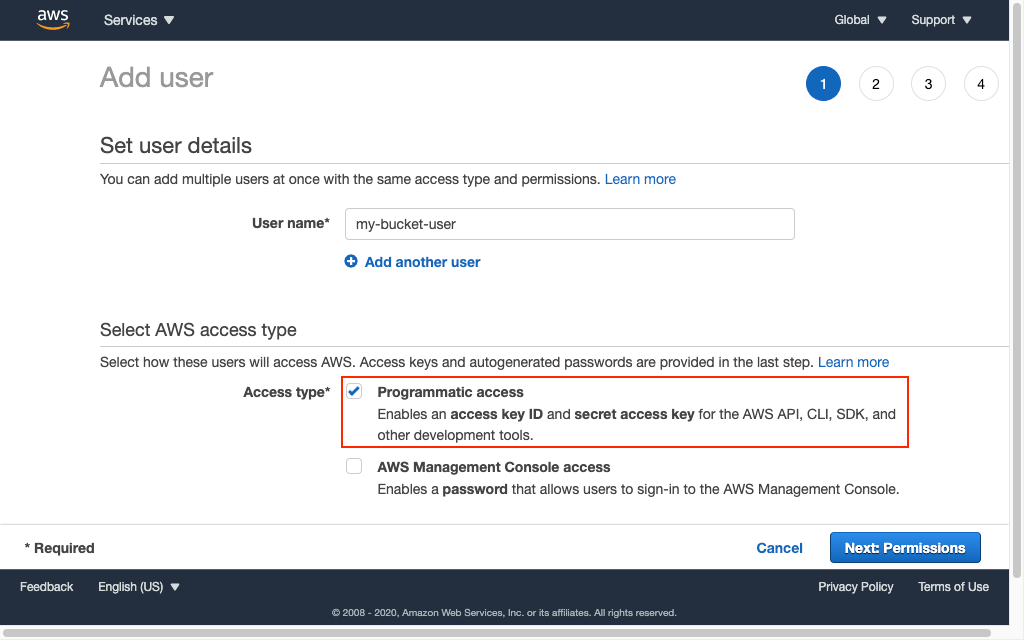
- Attach the policy you created to the new user.
- Copy the user's access key and secret.
To automatically delete old backups or move them to a cheaper storage class, have a look at lifecycle management.
Create a Hetzner Bucket with Minio
Capital letters are variables you can choose freely. In this example, we use region nbg1 (Nuremburg).
- In the Hetzner Console at
https://console.hetzner.com/projects/YOUR_PROJECT/security/s3-credentials, create some S3 access credentials: key and secret. - Install Minio
- Configure Minio to access your Hetzner buckets:
mc alias set MY_ALIAS https://nbg1.your-objectstorage.com YOUR_S3_KEY YOUR_S3_SECRET - Create a bucket with Object Locking enabled:
mc mb MY_ALIAS/BUCKET_NAME --with-lock --region nbg1. This ensures you cannot accidentally delete your backups. - Set Object Locking period to 90 days:
mc retention set GOVERNANCE 90d --default MY_ALIAS/BUCKET_NAME - Check if everything is configured correctly:
mc retention info --json --default MY_ALIAS/BUCKET_NAME - Enter configuration in S3 Backup Settings :
- Endpoint URL : https://nbg1.your-objectstorage.com/
- Bucket Name:
BUCKET_NAME - Access Key ID :
YOUR_S3_KEY - Access Key Secret :
YOUR_S3_SECRET
Set up ERPNext
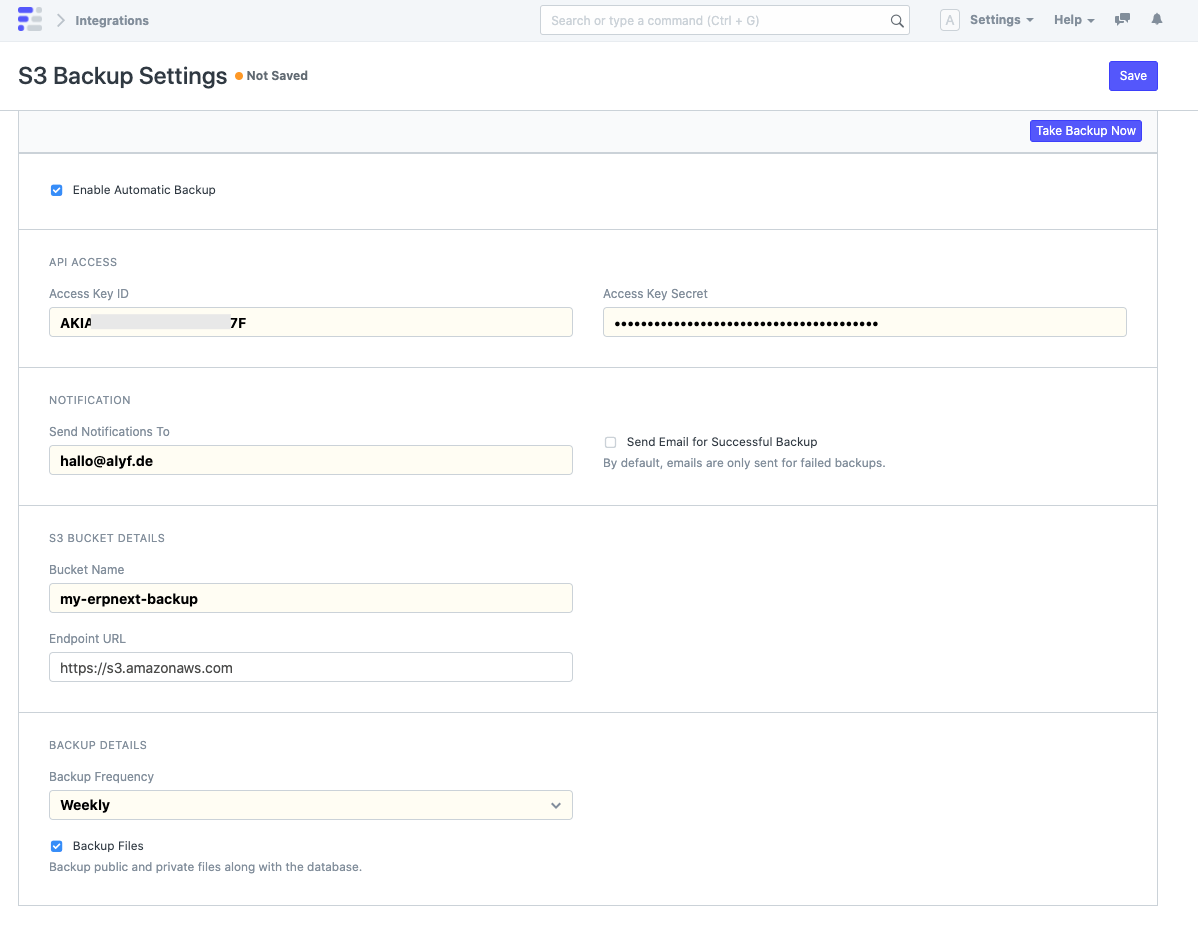
- Open S3 Backup Settings.
- Check "Enable Automatic Backup".
- Paste the access key and secret from AWS.
- Set an email address to receive a notification when a backup fails. If you would like an email for successful backups as well, enable "Send Email for Successful Backup".
- Specify the name of the bucket that you created in step 1.
- Choose how often you want to take and upload backups. This can range from monthly to daily. If you only want to take manual backups, set the frequency to "None".
Restore deleted files from versioned bucket
- List all file versions:
mc ls -r --versions MY_ALIAS/BUCKET_NAME/ - Download a specific version:
mc get --vid TARGET_VERSION_ID MY_ALIAS/BUCKET_NAME/20260415_162402/20260415_162402-company_frappe_cloud-database.sql.gz ~/Downloads
Last updated 11 hours ago